Due to safety limitation imposed by Apple on MacOS, SYQEL can only detect your microphone inputs when you allow access.
On Windows, The Realtek audio driver limits the signal strength to 35-48% of its real volume, thus the audio signal arriving on SYQEL’s web version is not strong enough to fully animate the visuals.
In order to solve these issues we recommend to install a third party app that will create a “virtual input device” that will then be available to SYQEL.
While numerous solutions exist, we recommend the following three as they seem to be the most reliable and easy to use:
Option 1: Loopback. (Premium)
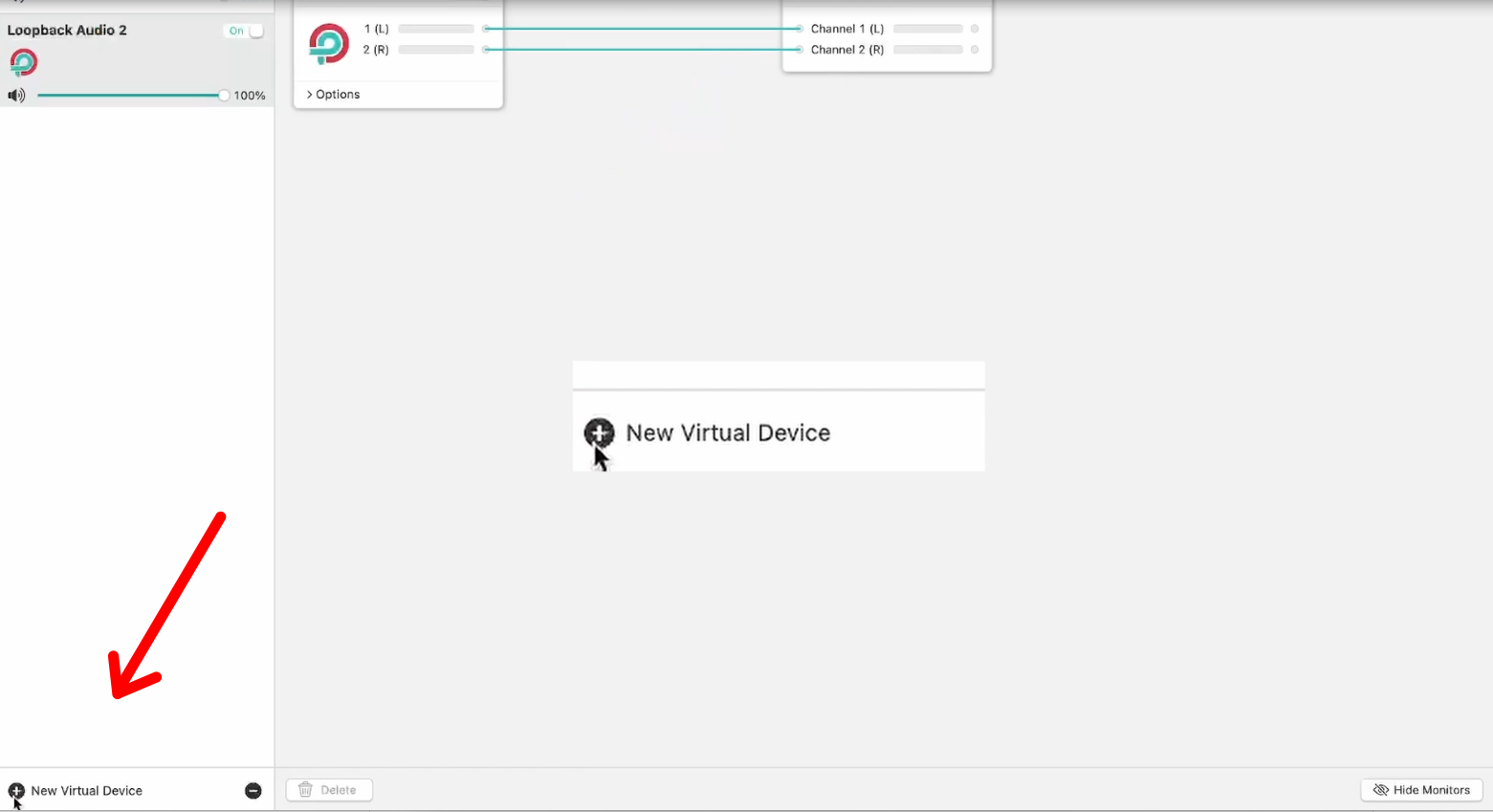
- Once you have installed Loopback, open it and create a new virtual device.
- Route the software you are using as the input to the new virtual audio source
- Then, within SYQEL you will now see a new audio input option as “Loopback Audio (#)”.
Option 2: Mixline by Logitech (Freemium) – for both Mac & Windows!
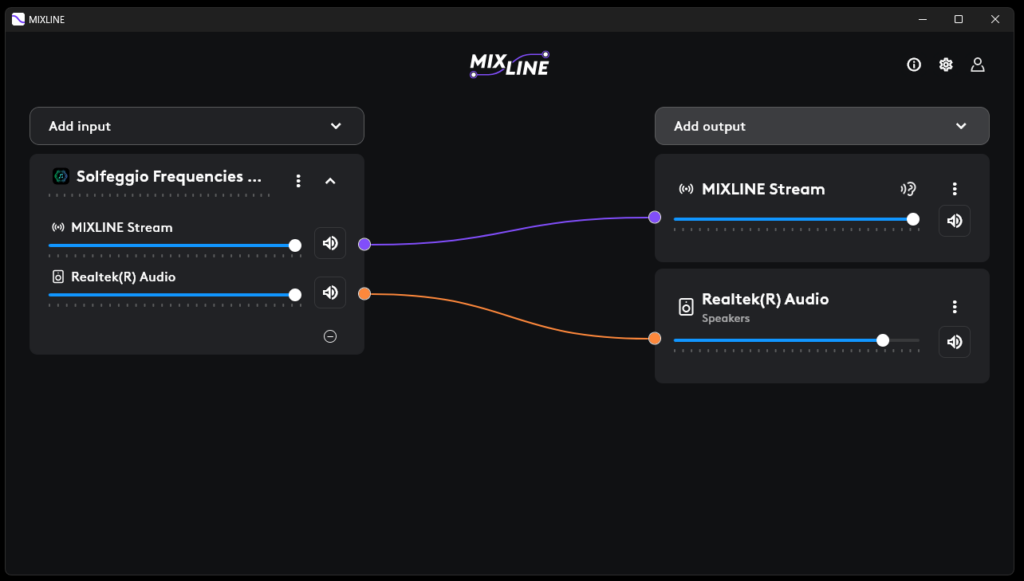
- Once you have installed Mixline, open it and select your audio input.
- Route the software you are using as the input to the Mixline Stream virtual audio source.
- Then add your regular speakers / headphones output as a monitor and route the audio to it too.
- Then, within SYQEL you will now see a new audio input option as “Mixline Stream)
Option 3: Blackhole. (Free) – for Mac only
* SYQEL is not affiliated or endorsed by any of these 3rd party software.